
Meetups, runs, game nights — anything anyone can come to. An event goes into the listings right away, without review.
Add an event
Events → "Add event".
- Title and description.
- Start and end — in city time.
- Place — from the place catalog, or an address with a pin on the map.
- Poster — required: portrait 4:5, at least 1080 px wide.
- "Free" or a ticket link.
"Publish" puts it in the listings right away. "Save draft" keeps it visible only to you.
What Limit Title up to 120 characters Description up to 3,000 characters Address up to 200 characters Poster JPG, PNG or WEBP New events up to 20 per 24 hours 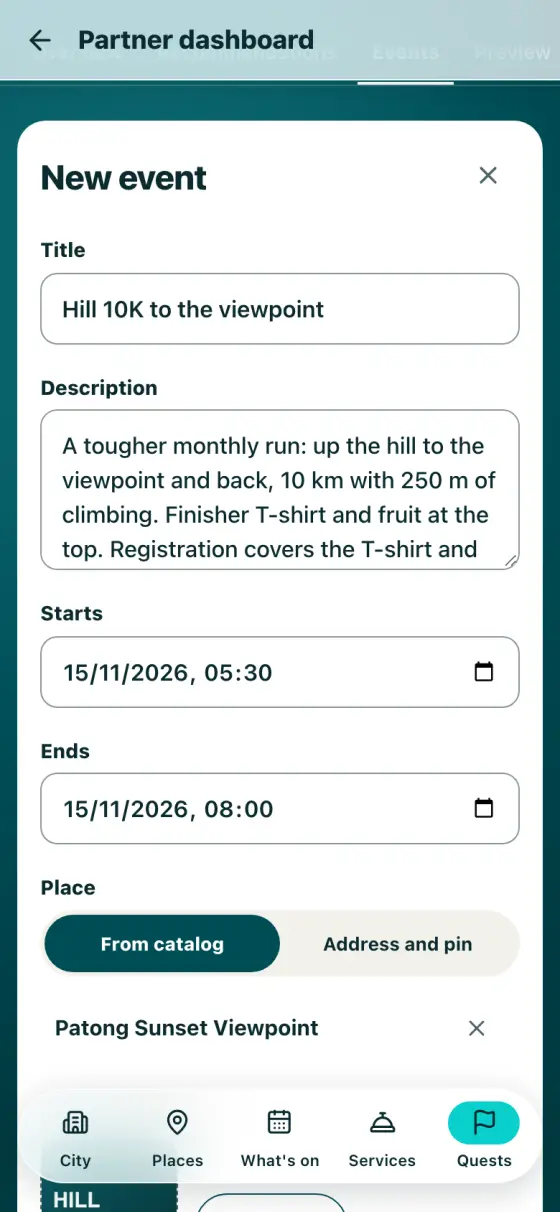
The event form "Going"
People tap "Going" on the event page. We remind them by bot message or email 3 hours before — the evening before at 20:00 if that falls at night — and tell them about cancellations and changes.
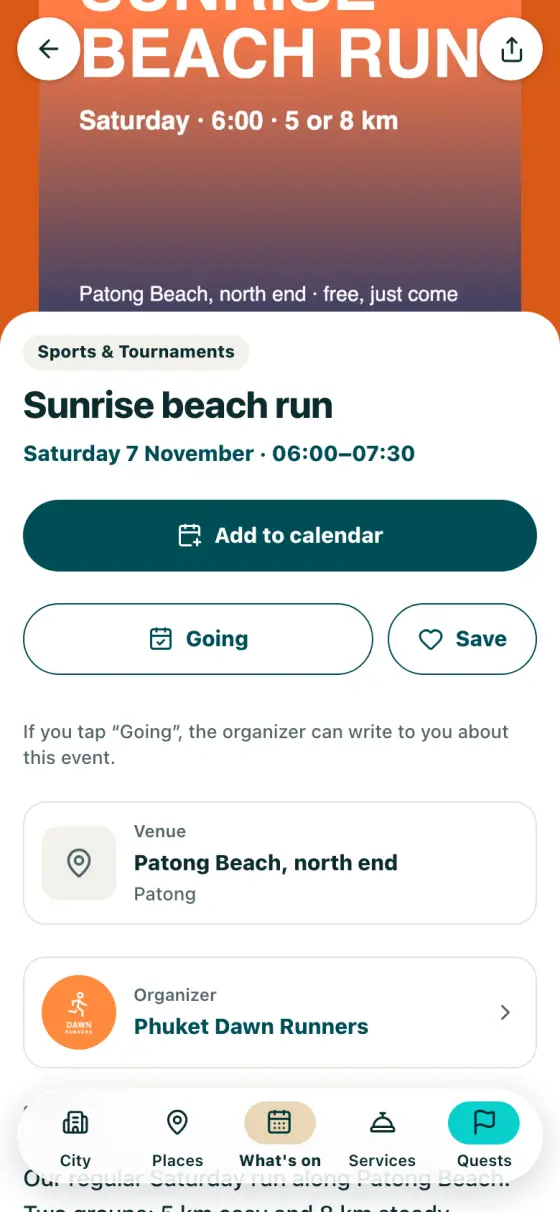
An event with "Going" and your community as the organizer Write to the people going
In a published event's form — "Message the people going". It comes from the bot; people the bot can't reach get an email. You don't see their names, only the count.
What Limit Messages per event up to 3 Pace one per 2 hours at most Per community up to 10 per 24 hours Length up to 3,500 characters Important: A sent message can't be recalled. Recipients get a "Report" button under each message.
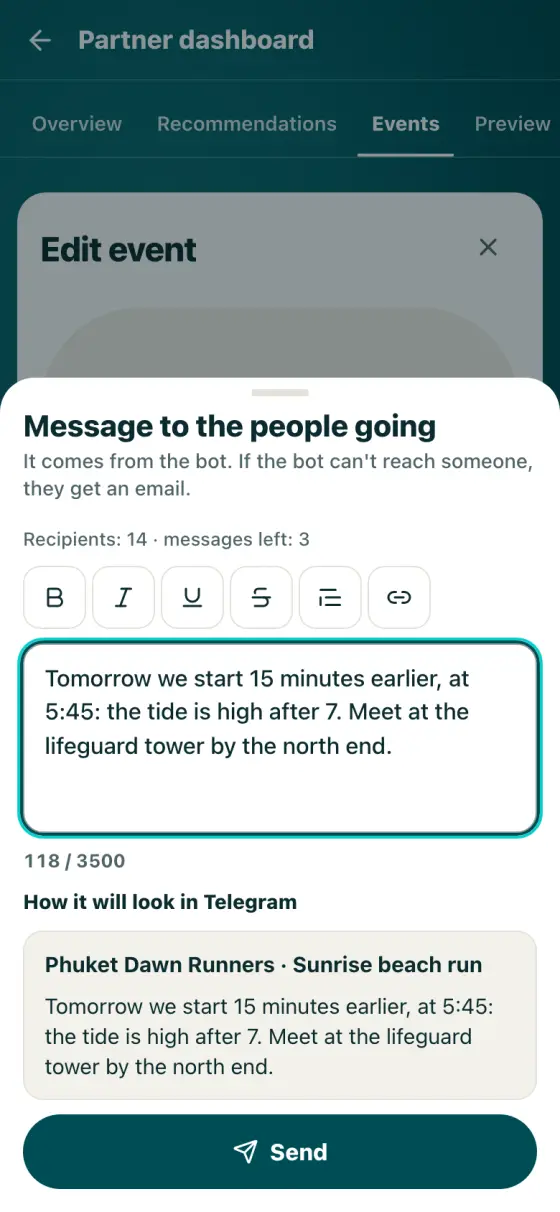
A message to the people going Watch the status
"Published", "Draft" or "Hidden by admin" — with a reason. You can still edit a hidden event; only an admin can show it again.
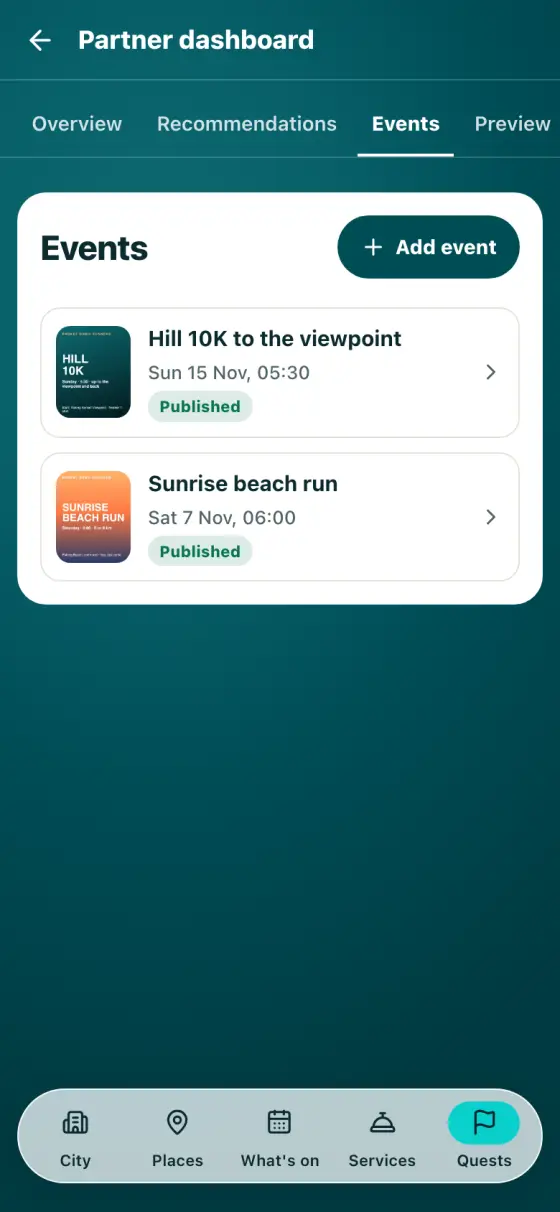
The event list
Tip: If the same event is already in the listings from our sources, your version becomes the main one.
Important: If you delete a published event or turn it back into a draft, the people going get a cancellation message.
Each event has one date: for a series of meetups, add each one separately.