
The card is your service's page in the app, the Telegram Mini App and on the website. Hours, contacts and photos go live as soon as you save; the name, description, categories and address go through our editors.
Open the dashboard
Profile → "Partner dashboard". On a computer, the dashboard is at https://app.nearo.guide/partner. If you run several listings, pick one in the switcher.
Change what's "Published at once"
The top of the Overview tab:
- Logo — "Change the logo".
- Photos — up to 10; best: the logo, the entrance, the premises. "Move left" changes the order. The last photo can't be deleted: add another one first.
- Opening hours — up to two intervals a day; closing before opening means after midnight. Each day can also be "Closed" or "24 hours".
- Website — the official site.
- Phone, WhatsApp, Telegram, LINE — a phone with the country code; WhatsApp — a number or a WhatsApp link; Telegram — t.me/name or @name; LINE — an ID or a LINE link.
- Google Maps — only a Google Maps link.
- Languages you serve in — two-letter codes, for example en, ru, th.
Tap "Save" — the changes are live right away.
Important: If a change leaves the card without what it needs for search — a description of 80+ characters, a contact or a website, a logo or a photo — the dashboard warns you first and asks whether to save anyway.
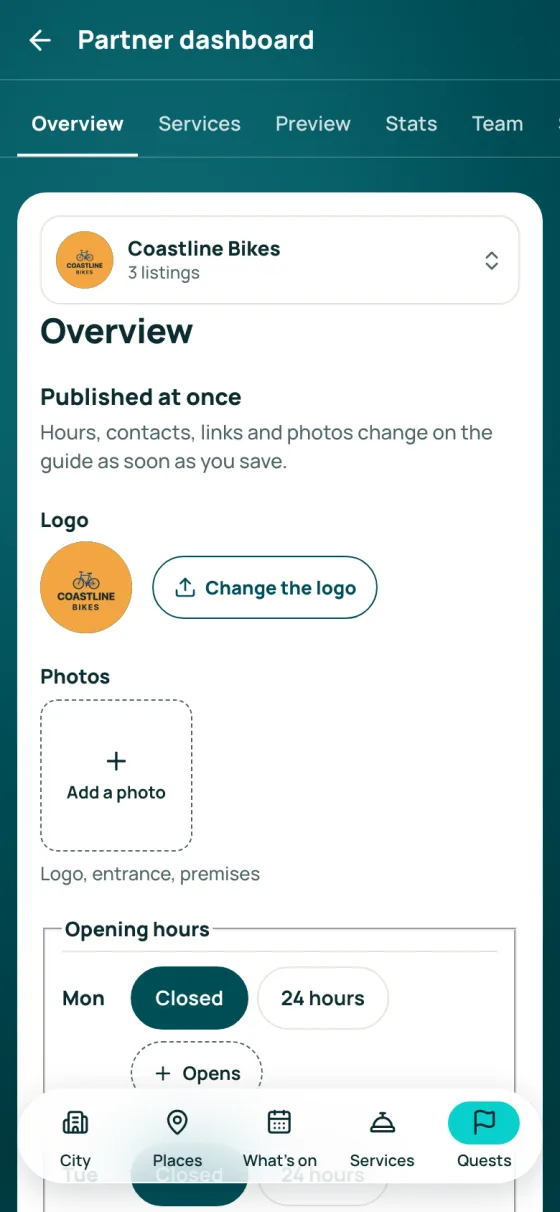
A service's card in the dashboard Send the rest for review: "Checked by our editors"
- Name — and "Name in English", up to 80 characters each.
- Description — facts for guests: what you offer, what makes you different, practical details. Up to 2,000 characters in Russian and in English; write in one language and we translate the other.
- Categories — where the card appears in the catalog.
- Address and point on the map — the point as latitude and longitude.
Each field has its own "Send for review". The public card stays as it is until our editors decide; they may edit the text before accepting. The field shows its status: "Under review", "Accepted" or "Declined" with the reason.
Tip: The second language of an accepted description is a machine translation; our editors check it.
Check the Preview
It shows your card as guests see it and whether it's shown in search. If not, it lists what's missing: a description of 80+ characters, a contact or a website, a logo or a photo. "Open the page" opens the card itself.
| What | Limit |
|---|---|
| Name | up to 80 characters |
| Description | up to 2,000 characters per language |
| Photos | up to 10 |
| Address | up to 300 characters |
If something's wrong
- "The last photo stays: add another first"
- upload a new photo, then delete the old one.
- "A language is two latin letters, e.g. en"
- write the codes separated by commas: en, ru, th.
- A notice that the card is hidden
- write to support: support@nearo.guide.