
Takes a couple of minutes. The listing is already there: you only confirm it's yours. No documents needed.
Find your listing
Either way works.
"Is this yours?"
The button is on your service's page in the app while nobody runs it. It opens the "Confirm it's yours" screen right away. On the website, the same button opens the app.
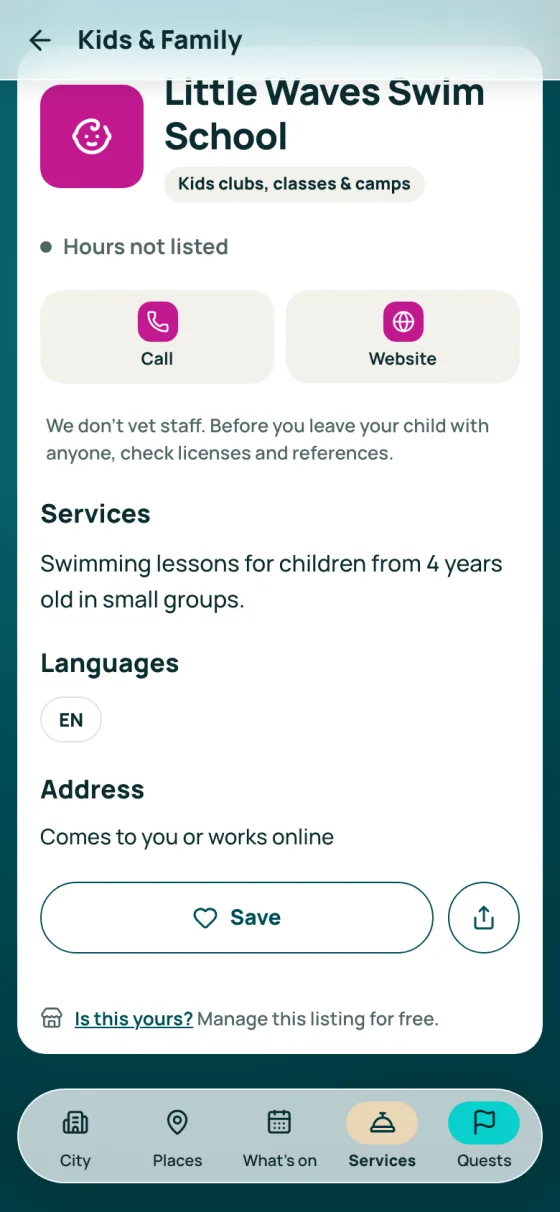
"Is this yours?" on a service's page "Become a partner"
In the app, open your profile, tap "Become a partner" and pick "Service". The same button is at the bottom of the home page. If you're not signed in yet, the app asks you to sign in: with an email code, Google or Telegram.
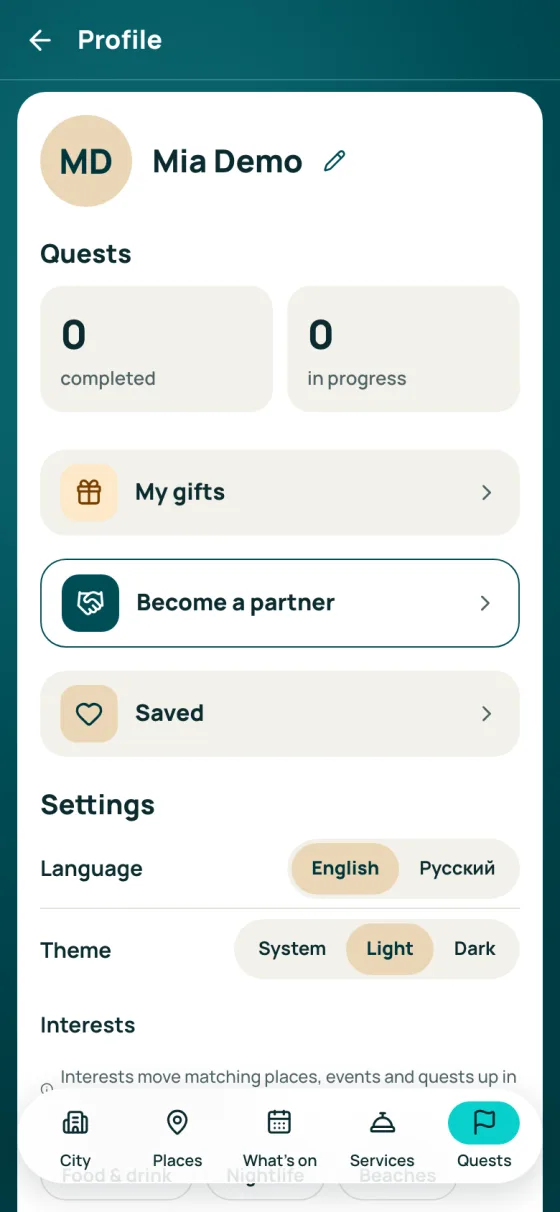
"Become a partner" in the profile 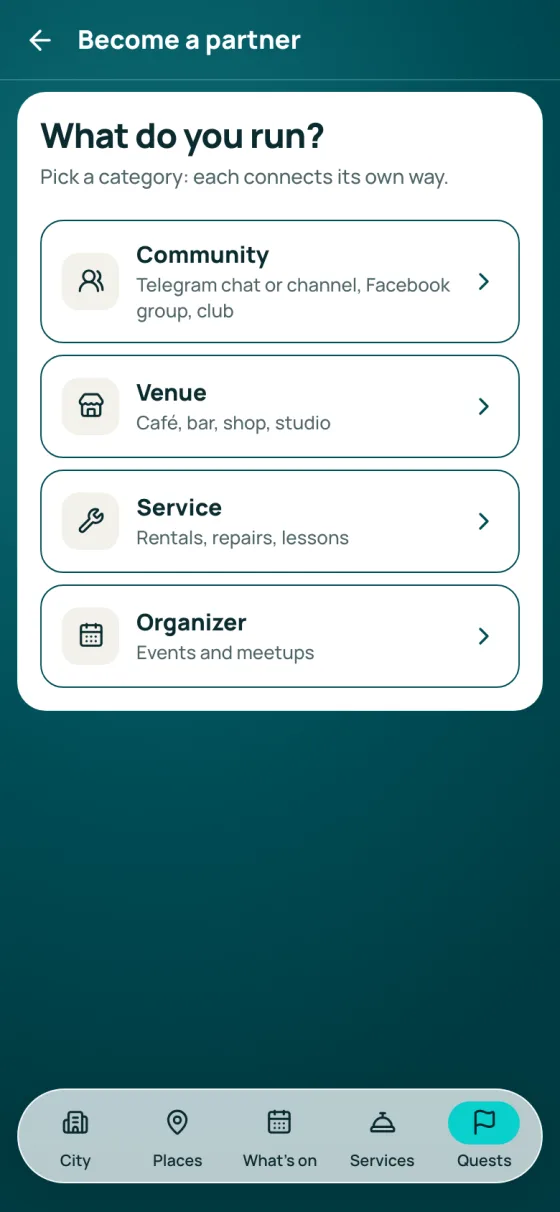
Picking a category If you came through "Become a partner"
Type at least two letters of the name, in English or Russian, and pick your service.
A service that already has an owner is marked "already managed" and can't be picked: ask its owner to invite you to the team.
"Not in the list" — if your service isn't in the catalog. Paste one link — Google Maps, a website, Instagram or another page — and tap "Send". Our team adds the listing from official sources and sends a sign-in link to the dashboard to its contact within 3 days.
Important: Without an official website or page, we can't add the service.
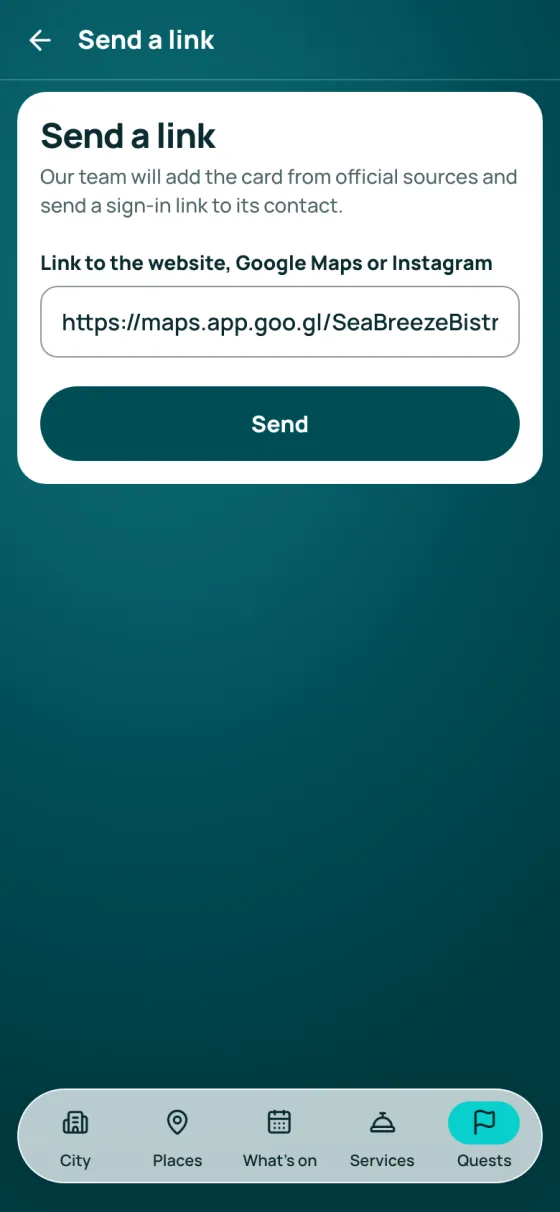
"Not in the list": one link Choose how to confirm
The "Confirm it's yours" screen shows only the contacts the listing has, so access reaches whoever runs the service. Each way says what happens next.
- The listing's email — a sign-in link to the dashboard goes out in an email right away.
- A work email on the website's domain — a code to an address like name@your-domain; the right code opens the dashboard right away.
- The listing's Telegram channel — pick the channel in our bot, and the dashboard opens right away.
- WhatsApp, LINE or phone from the listing — our team sends a sign-in link to the dashboard within 3 days.
- "Can't reach these contacts?" — always the last line: send a link, and our team checks it and sends a sign-in link to the contact you give within 3 days. A listing without contacts offers only this, with our email and /support in the bot under it.
Each way in detail — in the guide "Confirm it's yours".
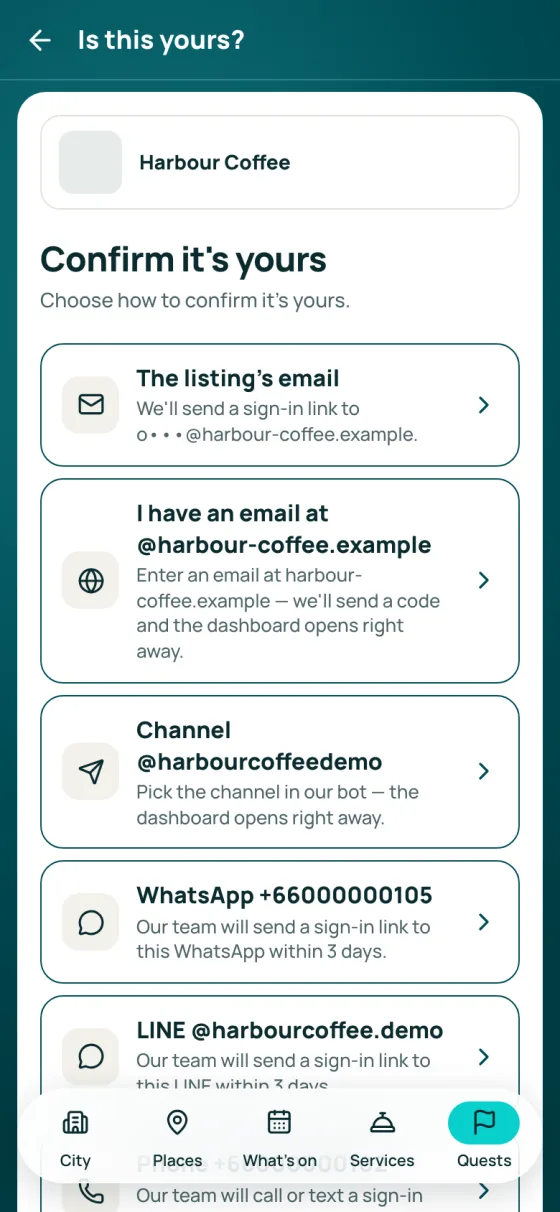
"Confirm it's yours" Open the sign-in link
The sign-in link works once, for 7 days. It opens the "Become the owner" screen with the listing. If you're not signed in, the app asks you to sign in first and brings you back.
Tap "Become the owner". By continuing, you accept the rules for partners — the link to them is under the button. "Partner dashboard" then appears in your profile.
Tip: Our editors may message you first — on WhatsApp, LINE or the listing's email — with the same kind of link.
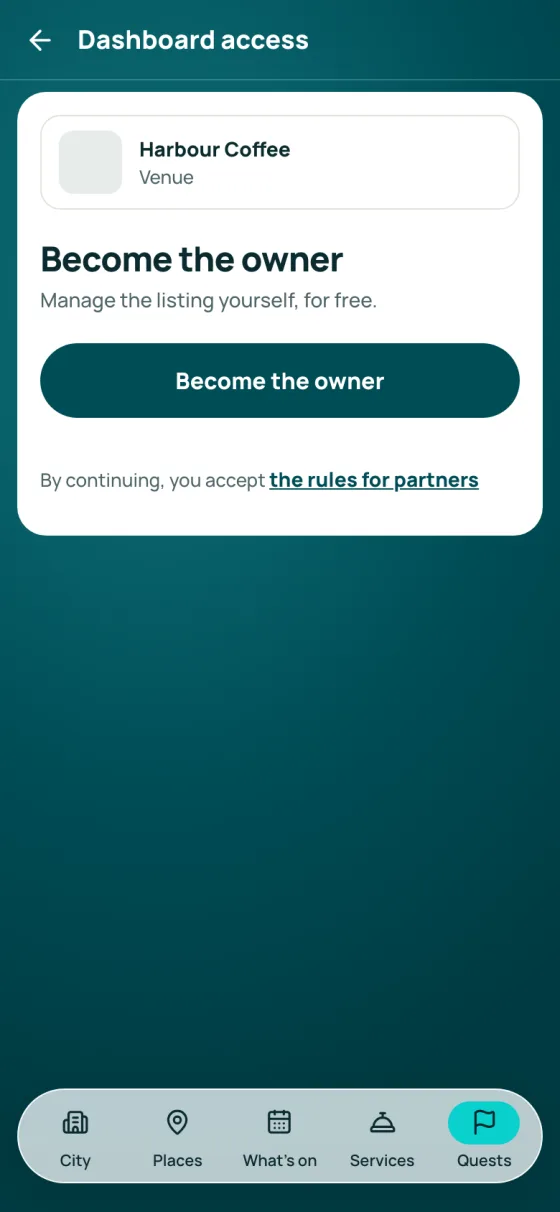
"Become the owner"
You become the owner right away, and "Partner dashboard" appears in your profile. No documents needed: our editors check afterwards.
If something's wrong
- The listing is marked "already managed"
- someone already runs it. Ask the owner to invite you to the team.
- "This link no longer works"
- the link was used, expired or replaced by a new one. Ask for a new one: email support@nearo.guide or send /support to our bot @nearo_guide_bot.
- No link after 3 days
- email support@nearo.guide or send /support to our bot @nearo_guide_bot.