
The organizer page shows your logo, description, links and upcoming events in the app and on the website. Event pages name you as the organizer, with a link to it. Changes go live as soon as you save, without review.
Open the dashboard
Profile → "Partner dashboard". On a computer, the dashboard is at https://app.nearo.guide/partner. If you run several listings, pick one in the switcher.
Fill in the Overview
- Logo — "Upload": JPG, PNG, WEBP or GIF.
- Company or project name — as people know it, up to 80 characters.
- Description — what events you run and for whom, up to 600 characters. Write in one language: the other one is a machine translation.
- Links — up to 10, one of them main: it opens from the big button on the page.
Tap "Save changes" — they're live right away.
Tip: For the page to be found on Google, it needs a description of 80+ characters, a logo and at least one upcoming event.
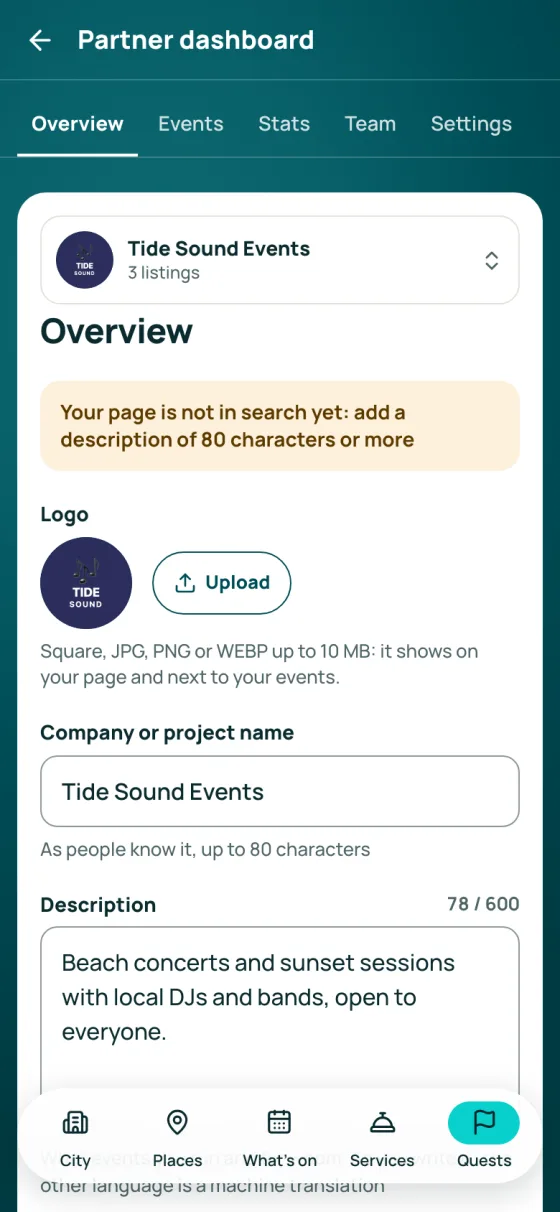
The organizer page in the dashboard How it looks
Guests see the logo, the description, the links and your upcoming events. Each of your events links back to the page.
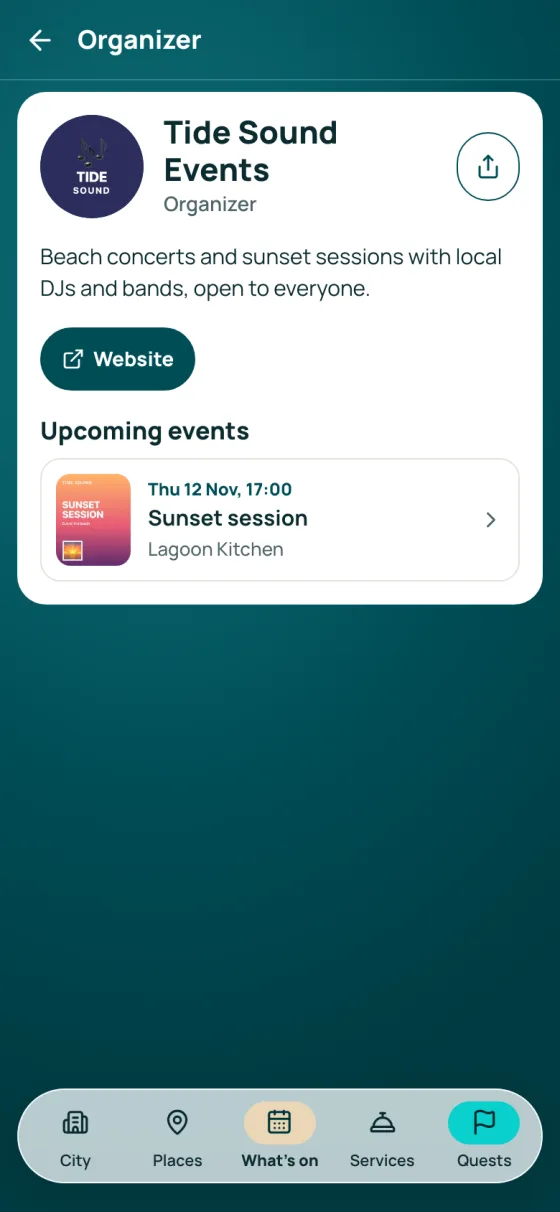
The organizer's public page
| What | Limit |
|---|---|
| Name | up to 80 characters |
| Description | up to 600 characters |
| Links | up to 10, one main |
| Logo | up to 10 MB |
Important: If our team hides the organizer, its page is gone, and the events created in its dashboard are hidden; they come back with it.